
# Managing Users
You can share access to your projects with other people by adding them as users in your projects.
# Adding Users
To add a user to your project, you must be an Account Admin for the account that the project belongs to.
New users are added in Edit Mode for a project, which is accessed by clicking the Edit Project button in the top right corner.

Select the Users tab.

Select Users in the left hand navigation bar.

Click Add Users on the right hand side.

Enter your new users' email addresses and select the group you want to add them to.
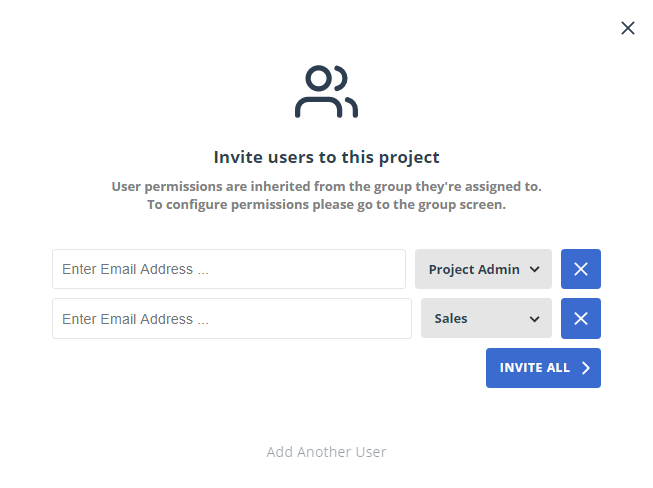
Click the Invite All button.
TIP
You can add multiple users by clicking the Add Another User link.
The invited users will receive an email invite to your project. If they do not already have a Gridfox account then they will be prompted to create one.
You will be able to see if the user has a verified account if you are an account admin by checking your account settings. Select the Account Menu in the top right hand corner.

Select Settings.

In the left hand side bar, all the accounts that you are an account admin for will be listed. Select the account that you would like to check the users for. Users that have verified their email address will have a checked box in the Verified column.
# Changing a User's Group
Once a user has been invited to a project, they can be moved to a different group if their permissions require changing.
Ensure you are in project edit mode and select the Users tab.
Select Users in the left hand navigation bar.
Open the settings menu for the user.

Select Change Group.

Choose which group that you would like to move the user to.
# Removing a User
A user can be removed from a project at any time.
Ensure you are in project edit mode and select the Users tab.
Select Users in the left hand navigation bar.
Open the settings menu for the user.
Select Remove User.

This will not delete the user's Gridfox account. This will only remove access to the project for this user.
# Azure AD Integration
Rather than your account users logging in with an email address and password, you can link Gridfox to your Azure AD account so that they can use their Microsoft credentials to login.
Contact us to get this set up in your system.